Custom Reports in BrandWise — Builder, Presets, and Saved Views
How to create custom reports in BrandWise: 8 system presets, report builder with filters and grouping, Saved Views for teams. Step-by-step guide.
Custom Reports Library
Custom reports let you create flexible data queries — from aggregated scenario tables to granular filters on individual responses. To open the library, navigate to Reports → Custom Reports in the project sidebar.
The library contains two report types:
| Type | Description |
|---|---|
| System Presets | 8 ready-made reports covering common analytics tasks |
| Custom Reports | Created by you or your team — accessible to all project members |
Each report in the table shows: name, type (System / Custom), author, entity level, and last updated date. Custom reports can be copied, edited, duplicated, and deleted via the context menu.
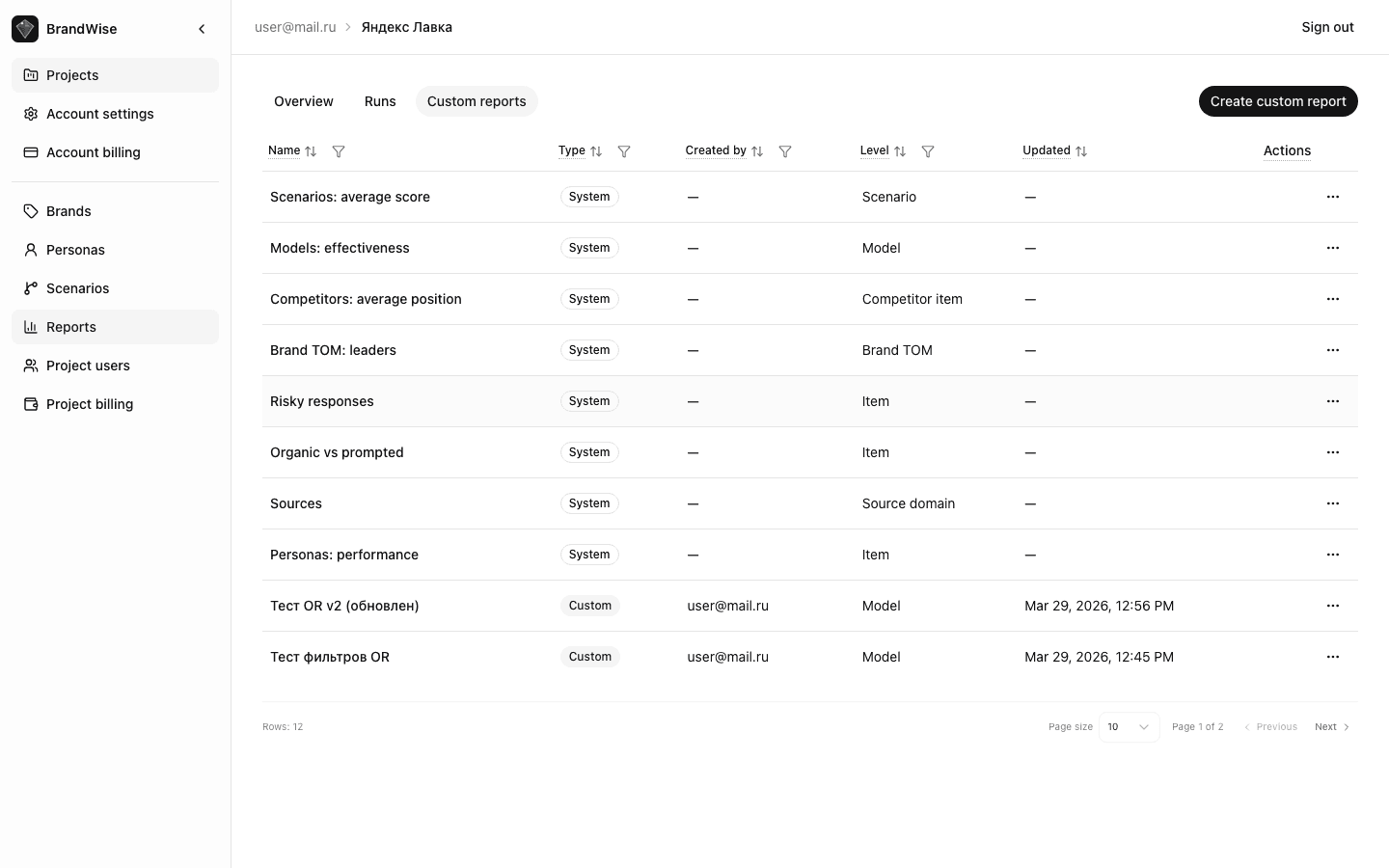
8 System Presets
System presets are pre-built configurations covering typical analytics needs. They cannot be deleted, but you can duplicate them as a starting point for custom reports.
1. Scenario Health
- Level: scenario
- Shows: Overall Score, model count, evaluated responses for each scenario
- Use case: quickly compare scenario health
2. Model Effectiveness
- Level: model
- Shows: Overall Score + Mention Rate for each model
- Use case: understand which AI models best represent your brand
3. Competitor Mention Order
- Level: competitor_item
- Shows: competitor mention position and your brand's position in the same responses
- Use case: competitive analysis — who occupies your positions
4. Brand ToM Leaders
- Level: brand_tom
- Shows: mention count, Mention Rate, Top of Mind score, and delta relative to your brand
- Use case: understanding the top-of-mind landscape
5. Risky Responses
- Level: item (individual response)
- Shows: model, intent, query context, and Overall Score for responses where the brand is mentioned
- Filter: only responses with brand mention and low score
- Use case: finding responses where the brand appears in a negative or inaccurate context
6. Organic vs Prompted
- Level: item
- Shows: query context (Organic / Brand Prompted), Overall Score, Visibility, Relevance, Top of Mind
- Use case: comparing response quality when the brand is in the prompt vs. when the model recalls it independently
7. Sources
- Level: source_domain
- Shows: domain, model, citation count, average Overall Score, average Relevance and Usefulness
- Use case: understanding which web sources models cite when discussing your brand
8. Persona Performance
- Level: item
- Shows: persona, Overall Score, Visibility, Relevance, Top of Mind
- Use case: analyzing how different target audience profiles affect model responses
Report Builder
The builder lets you create a report from scratch or based on a system preset. The interface consists of a settings panel on the left and a live preview on the right.
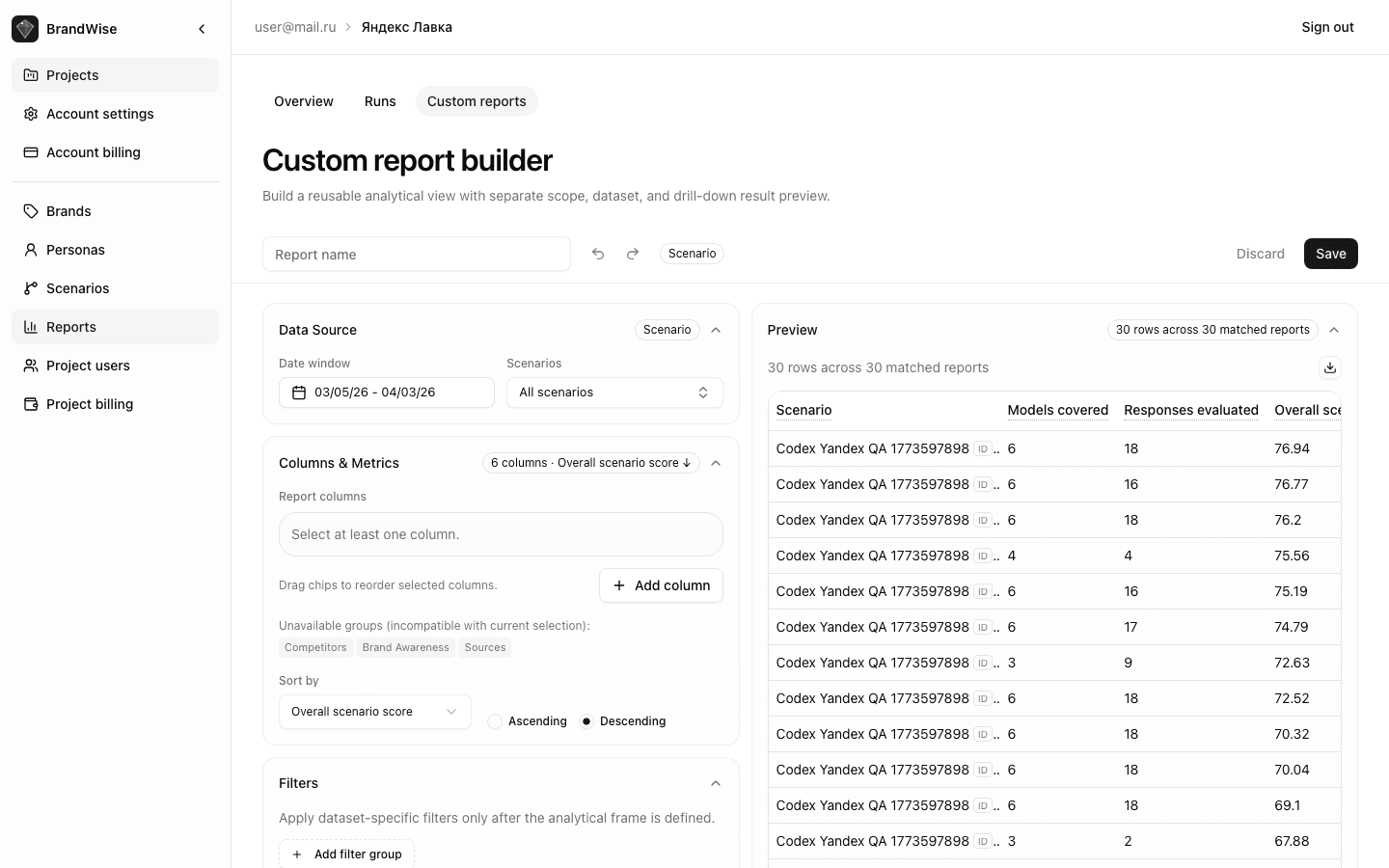
Metadata
- Name — a descriptive report name for the library
- Description — optional explanation to help your team understand the report's purpose
Scope
Defines which data the report includes:
| Parameter | Description |
|---|---|
| Period | Preset ranges (last 7/30/90 days) or custom dates |
| Scenarios | All or selected project scenarios |
| Run statuses | Completed, Partial — which runs to include |
Dataset
The key builder section — defines the table structure:
Entity level — the data aggregation level:
| Level | What Each Row Contains |
|---|---|
| scenario | One scenario with aggregated metrics |
| model | One model with aggregated metrics |
| item | One model response to one intent |
| competitor_item | One competitor + response pair |
| brand_tom | One brand from Top of Mind analysis |
| source_domain | One source domain from model web search |
Changing the entity level rebuilds the available columns.
Columns — select which data to include. Available columns depend on the entity level. Drag columns to reorder.
Sorting — choose a column and direction (ascending / descending).
Filters
A powerful filtering system lets you select exactly the data you need:
| Operator | Description | Example |
|---|---|---|
| equals | Exact match | Model = GPT-4o |
| not equal | Exclude value | Context ≠ Unclear |
| greater than | Above threshold | Overall Score > 50 |
| less than | Below threshold | Confidence < 0.5 |
| contains | Substring search | Intent contains "best" |
| in list | One of values | Model in [GPT-4o, Claude] |
| is null | Empty value | Persona not set |
Filters are grouped: conditions within a group use AND logic, between groups — OR.
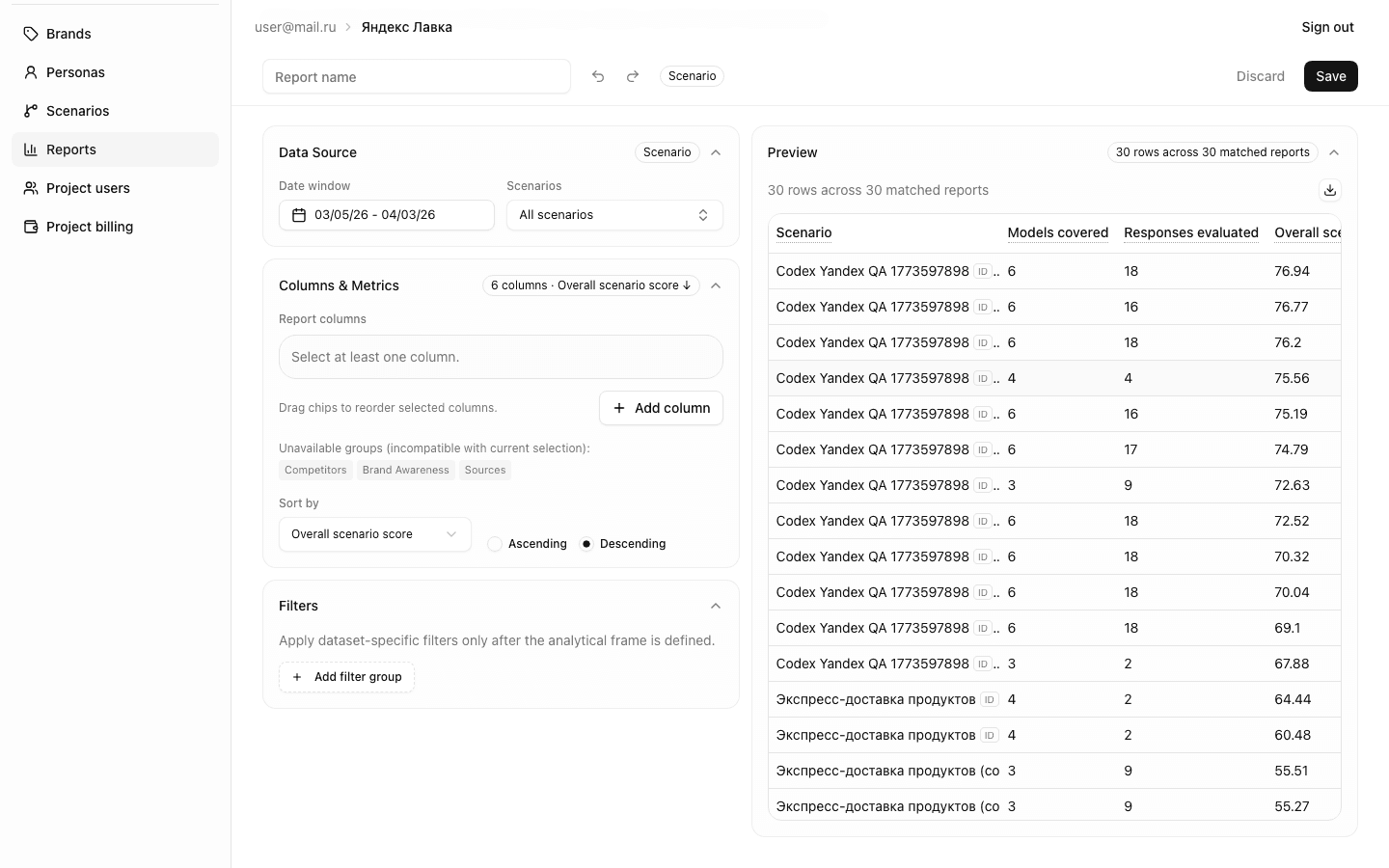
Results Preview
The right side of the builder shows a live table preview with current settings. The preview header displays the row count. This lets you verify the configuration before saving.
Keyboard Shortcuts
The builder supports undo/redo for quick rollback — use standard shortcuts (Ctrl+Z / Ctrl+Shift+Z).
Saved Views
Once saved, a report becomes available to the entire project team. Saved Views are named table configurations that you can:
- Create — any team member can save their own configuration
- Edit — update filters, columns, sorting
- Delete — remove when no longer needed
- Duplicate — create a copy for modification
Saved Views are especially useful for recurring analysis: configure a report once and return to it after each run without reconfiguring filters.
Creating Your First Custom Report
- Navigate to Reports → Custom Reports
- Click Create Report (or duplicate a system preset)
- Enter name and description
- Select period and scenarios in the Scope section
- Choose entity level and desired columns
- Add filters to narrow down data
- Check the preview — make sure the table contains the right data
- Click Save
The report will appear in the library and be accessible to your entire team.
Usage Examples
Find Weak Responses Mentioning the Brand
- Level: item
- Filter: "Mentioned" = Yes, Overall Score < 40
- Columns: intent, model, context, Overall Score, Visibility, Relevance
- Result: list of specific responses where the brand is poorly represented
Compare Models for a Specific Scenario
- Level: model
- Scope: one selected scenario
- Columns: model, Overall Score, Mention Rate, all 6 metrics
- Sort: by Overall Score, descending
Analyze Information Sources
- Level: source_domain
- Columns: domain, citation count, average score
- Sort: by citation count, descending
- Result: understanding which websites influence brand representation in AI
Next Steps
- Overview Dashboard — aggregated KPIs and trends
- Run Report — detailed analysis of a specific run
- BrandWise Metrics — formulas and components for all 6 metrics
- Create an account and get started