BrandWise Scenarios — Creation, Configuration, Basic & History Modes
How to create a brand evaluation scenario in BrandWise: choosing Basic or History mode, adding intents, selecting AI models, and configuring persona and dialog task.
What is a scenario
A scenario is the core evaluation unit in BrandWise. It combines three components:
- Intents — questions and prompts sent to AI models
- Models — the set of LLMs to test (ChatGPT, Claude, Gemini, DeepSeek, and more)
- Brand — the profile used to evaluate responses
Each scenario answers a specific business question: "How does our brand appear in AI responses about the best CRMs?", "Do models recommend our restaurant when people search for dinner spots?", or "What do AI models say when comparing us with competitors?"
Running a scenario produces an aggregated report with scores across 6 metrics, a model heatmap, and evidence quotes — verbatim excerpts from model responses backing each score.
Scenario list
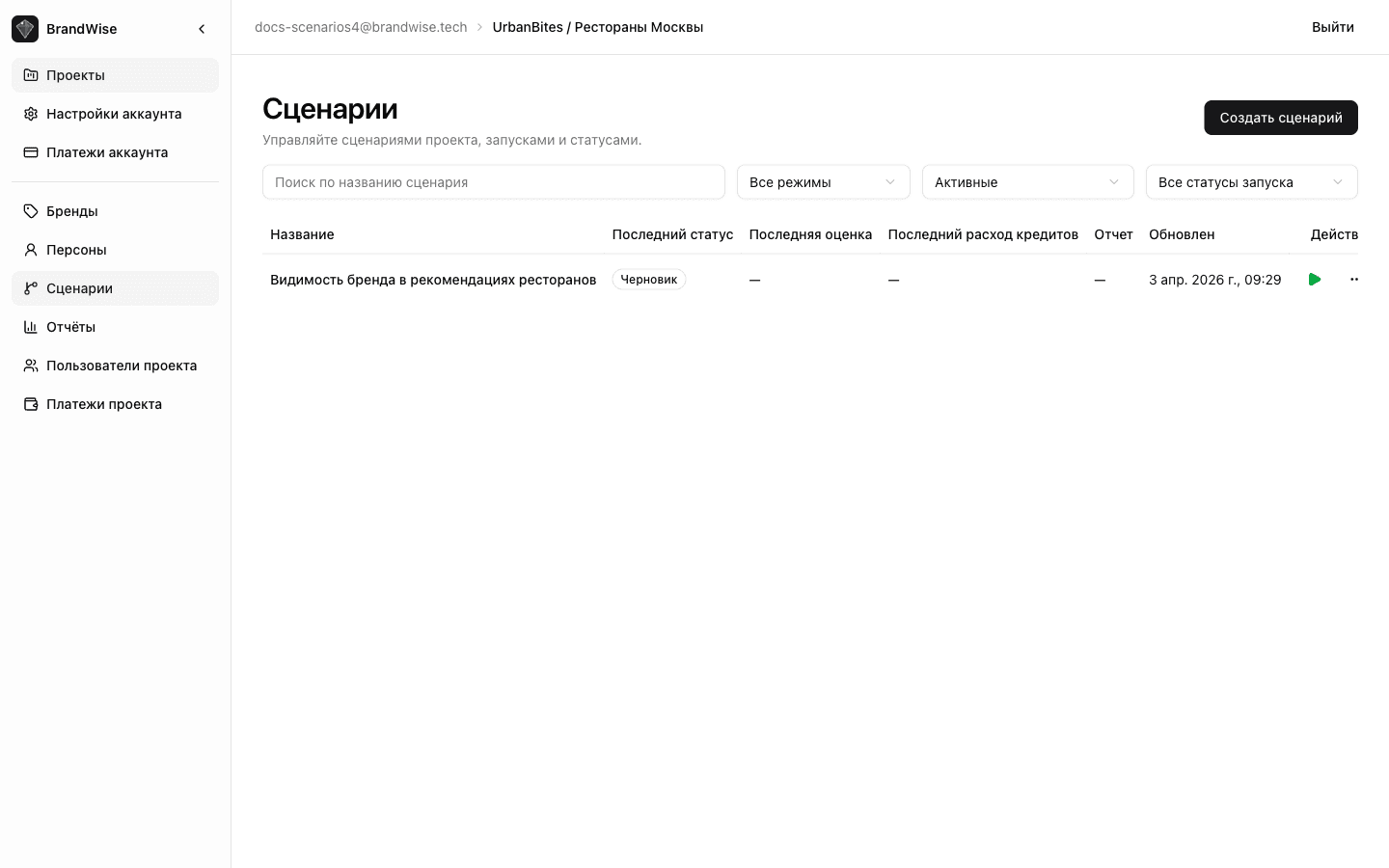
All project scenarios are displayed in the Scenarios section in the project sidebar. Each scenario shows:
- Name and linked brand
- Mode (Basic or History)
- Latest run status
- Creation and last run date
You can create a new scenario, open an existing one for editing, or duplicate it.
Creating a scenario
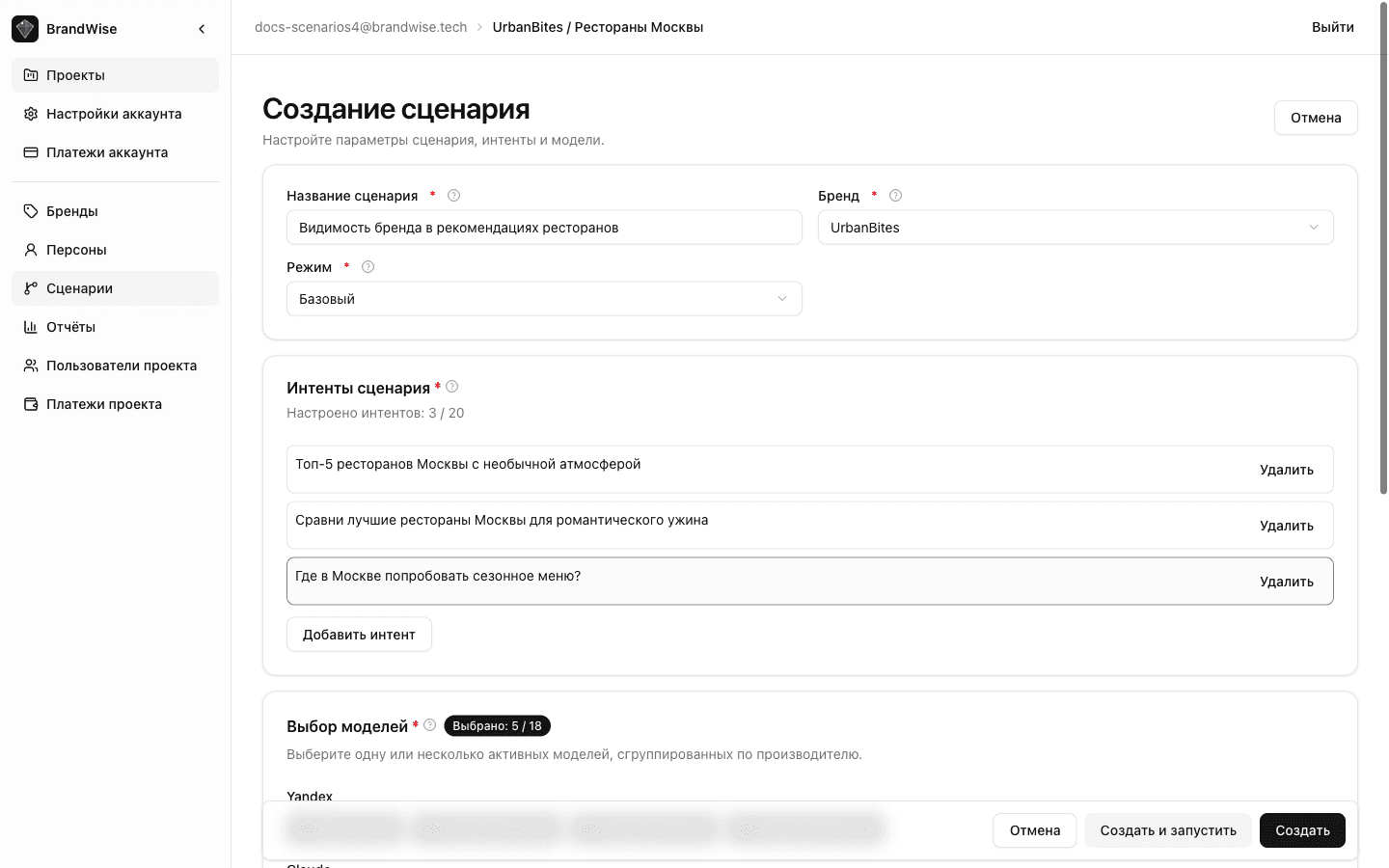
Click Create scenario on the scenarios page. The editor opens with several sections.
Core fields
| Field | Required | Description |
|---|---|---|
| Name | Yes | A descriptive name reflecting the evaluation goal. Example: "Brand visibility in restaurant recommendations" |
| Brand | Yes | Select from project brands or quick-create a new one |
| Mode | Yes | Basic (single-turn) or History (multi-turn dialog) |
Basic mode — single-turn queries
In Basic mode, each intent is sent to the model as a standalone question. The model replies with a single message, and that response is evaluated across 6 metrics.
Best suited for:
- Direct questions: "What's the best CRM for small businesses?"
- Comparison queries: "Compare Slack vs Microsoft Teams for remote work"
- Recommendation requests: "Suggest a restaurant in downtown Manhattan for a business dinner"
- Overview queries: "Top 5 cloud storage services for enterprises"
History mode — multi-turn conversations
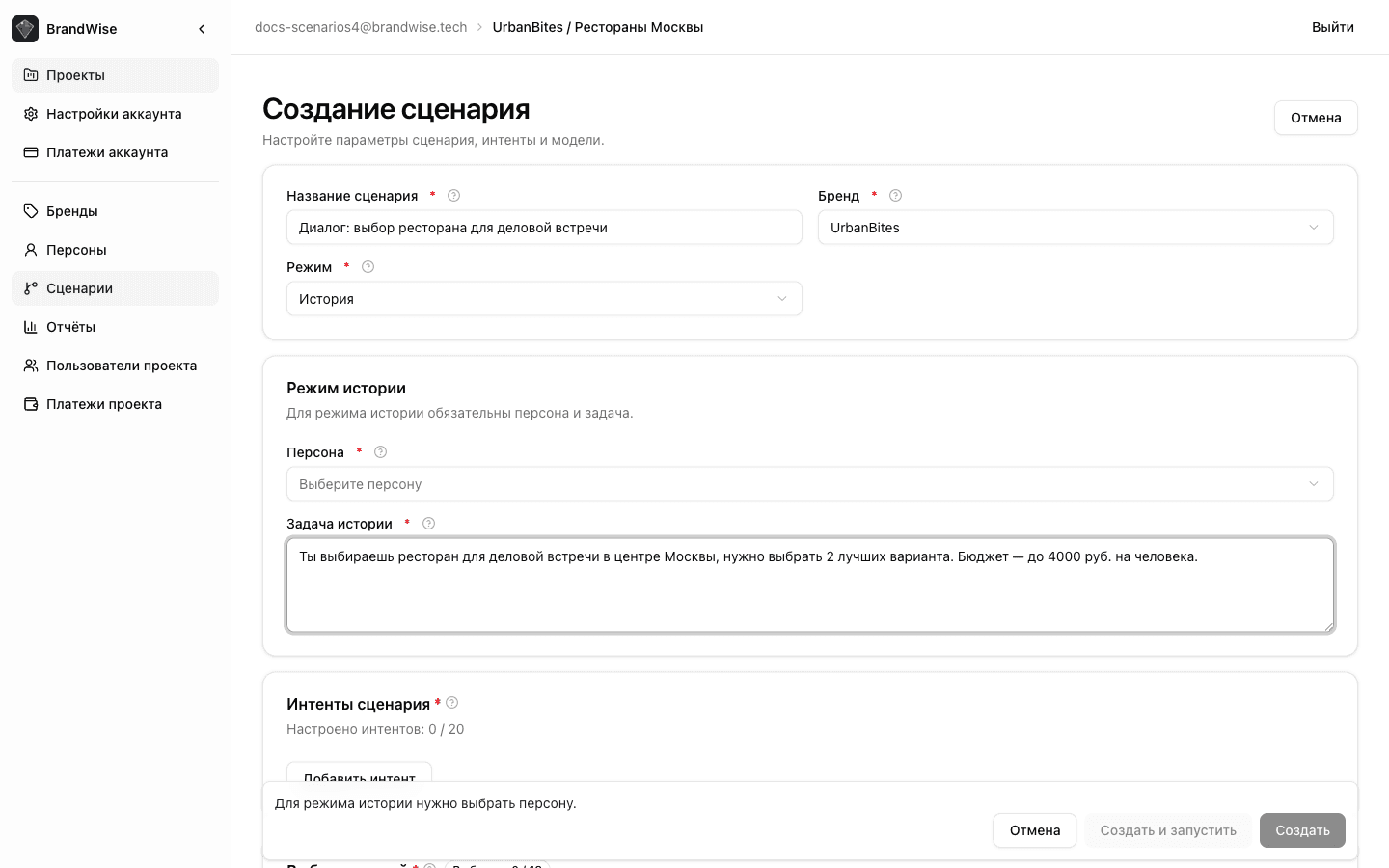
In History mode, the model engages in a conversation with a virtual user (persona) who pursues a specific goal. The dialog runs for 1 to 10 turns and ends when one of these conditions is met:
- task_completed — the persona achieved the goal (e.g., chose a restaurant)
- early_stop — the persona decided to end the conversation early
- max_turns — the turn limit was reached (default: 10)
When you select History mode, additional fields appear:
| Field | Required | Description |
|---|---|---|
| Persona | Yes | Select from project personas or quick-create one |
| History Task | Yes | Description of the dialog goal (10–1,000 characters) |
History Task examples:
- "You're choosing a restaurant for a business meeting and need to pick 2 options"
- "You're looking for a CRM for a 10-person team with a budget under $50/month and need to make a decision"
- "You're comparing cloud storage services for a corporate data migration"
History mode is ideal for evaluating how models behave in realistic conversations — when a user refines requirements, asks follow-up questions, and gradually narrows down options. This produces a more realistic picture than single-turn queries.
Intents — questions for models
Intents are the specific questions and prompts that BrandWise sends to the selected AI models. Each scenario contains 1 to 20 intents, each between 10 and 1,000 characters long.
Best practices for writing intents
Phrase intents as real user queries to AI:
| Query type | Example |
|---|---|
| Recommendation | "Suggest a CRM for a small business" |
| Comparison | "Compare Slack and Microsoft Teams for remote work" |
| Overview | "What brand monitoring services are available?" |
| Specific question | "What's the best restaurant in Manhattan for a business dinner?" |
| Alternative search | "What are the alternatives to Notion for team collaboration?" |
Tips:
- Mix broad and specific questions for a complete picture
- Include queries that real users actually ask ChatGPT or Claude
- Add queries with constraints (budget, location, team size)
- Use different phrasings of the same question to test response consistency
Managing intents
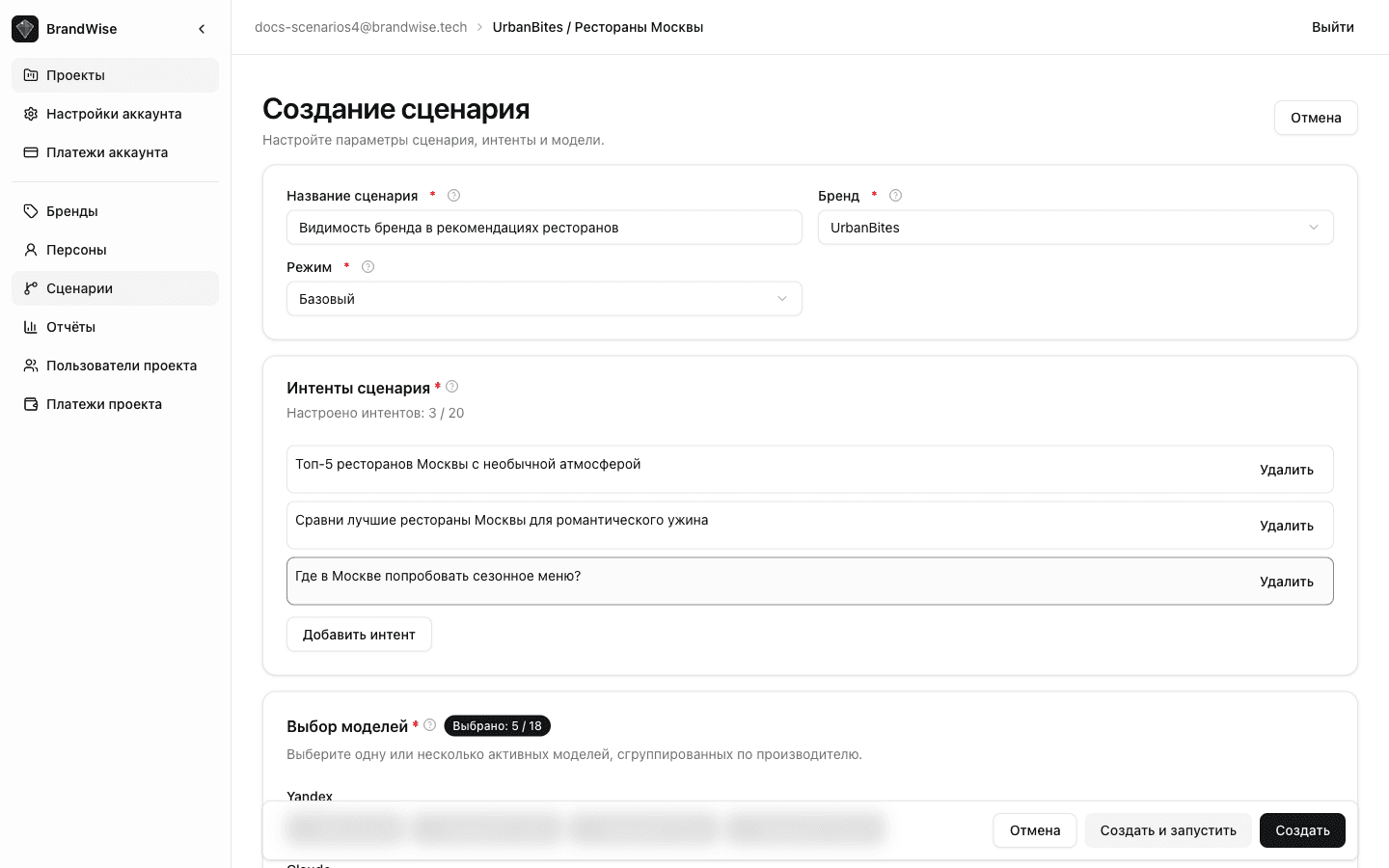
In the scenario editor, intents appear as a numbered list. You can:
- Add a new intent with the Add intent button
- Edit the text of an existing intent
- Delete an intent
- Drag and drop intents to reorder them
Selecting AI models
BrandWise provides a model catalog grouped by vendor. At least 1 model must be selected to run a scenario.
Available vendors and models
| Vendor | Example models |
|---|---|
| OpenAI | GPT-4o, GPT-4.1, o3-mini, o4-mini |
| Anthropic | Claude 3.5 Sonnet, Claude 3.5 Haiku |
| Gemini 2.0 Flash, Gemini 2.5 Pro | |
| DeepSeek | DeepSeek V3, DeepSeek R1 |
| Yandex | YandexGPT 5 Pro, YandexGPT 5 Lite |
| GigaChat | GigaChat Pro, GigaChat Max |
| Mistral | Mistral Large, Mistral Small |
| Meta | Llama 4 Scout, Llama 4 Maverick |
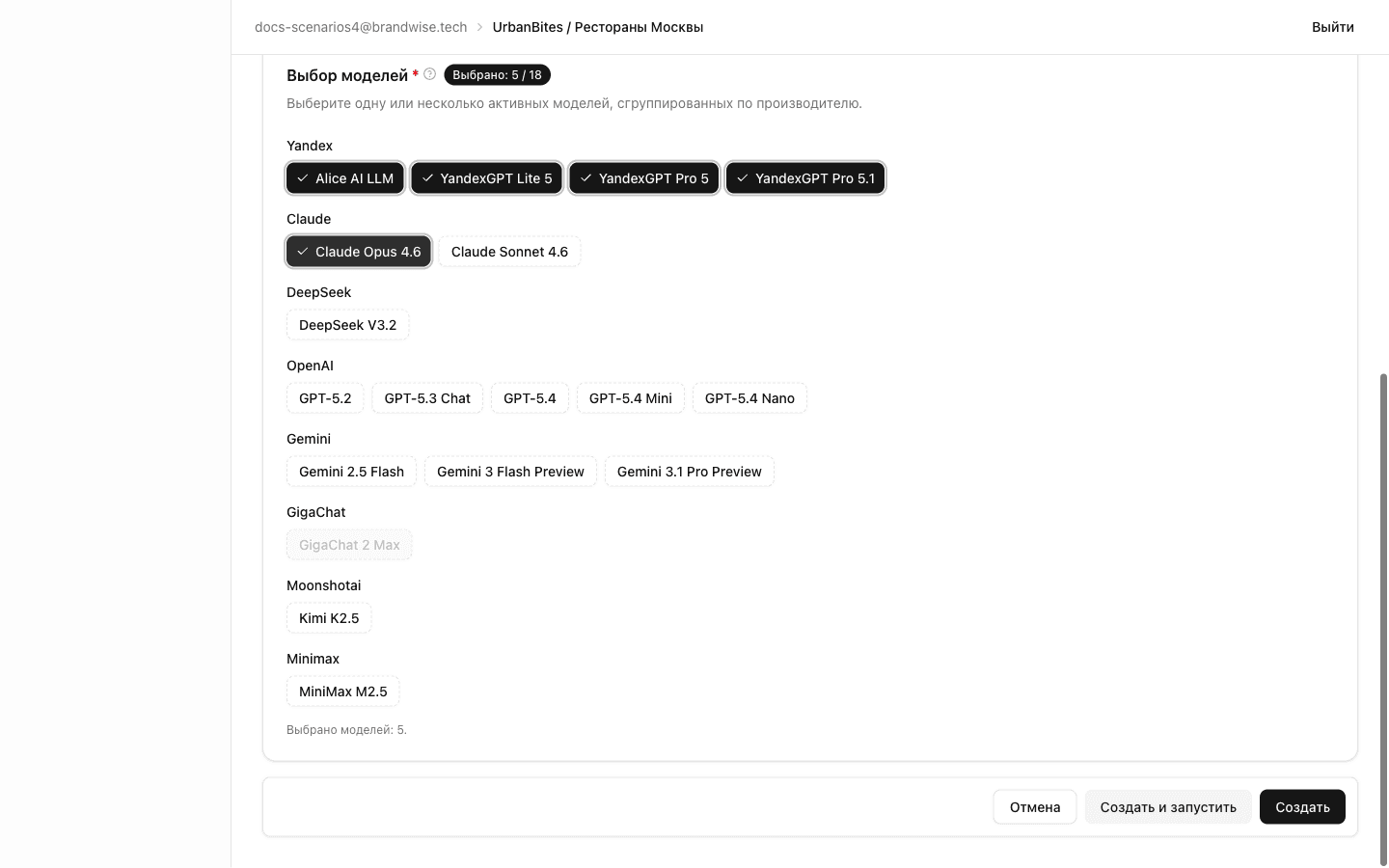
Models are grouped by vendor in the catalog. Select the models you want using toggle buttons. Inactive models and those marked "coming soon" are visually distinguished and cannot be selected.
Tip: for your first run, select 3–5 models from different vendors to see how your brand is represented across ecosystems. After reviewing the first report, expand the model set based on results.
Saving and launching
The scenario editor offers four actions:
| Button | What it does |
|---|---|
| Create | Saves the new scenario without launching |
| Create and run | Saves and immediately starts the evaluation |
| Save | Saves changes to an existing scenario |
| Save and run | Saves changes and starts the evaluation |
If you navigate away with unsaved changes, a warning dialog will appear — you can choose to save or discard changes.
Duplicating a scenario
You can duplicate any existing scenario. The copy inherits all settings from the original:
- Name (with a "Copy" label)
- Linked brand
- Mode (Basic / History)
- Persona and History Task (for History mode)
- All intents
- Selected models
Duplication is useful when you want to test variations — for example, the same set of intents with a different model selection or a different brand.
Execution matrix
When a scenario is launched, BrandWise generates execution items using this formula:
Number of items = intents × models × temperature variantsFor example, a scenario with 5 intents and 4 models produces 20 execution items (with one temperature variant). Each item is a separate model call evaluated across 6 metrics.
Run cost in AI credits depends on the number of items, selected models, and response length.
What's next
- Running an evaluation: process, statuses, actions — how to launch a scenario and track progress
- Brand profile — setting up a brand for accurate evaluation
- Personas — creating user profiles for History mode
- Create an account and get started
Personas in BrandWise — Creating Target User Profiles for AI Evaluation
How to create personas in BrandWise: fields, description tips, and examples. Personas are required for multi-turn conversations in History mode.
Running a Brand Evaluation — Statuses, Checks, and Resuming Runs
How to run a scenario evaluation in BrandWise: pre-launch balance checks, run status lifecycle, resuming stopped runs, and email notifications.