Running a Brand Evaluation — Statuses, Checks, and Resuming Runs
How to run a scenario evaluation in BrandWise: pre-launch balance checks, run status lifecycle, resuming stopped runs, and email notifications.
Pre-launch checks
Before launching a scenario, BrandWise automatically verifies two conditions:
| Check | Requirement | Error if unmet |
|---|---|---|
| Billing profile | The project must have an active billing profile linked | PROJECT_BILLING_NOT_CONFIGURED |
| AI credit balance | The balance must be at least 100 AI credits | BILLING_BALANCE_TOO_LOW |
If either condition is not met, the system displays an error and prevents the run from starting. You can top up your balance on the account billing page.
Run statuses
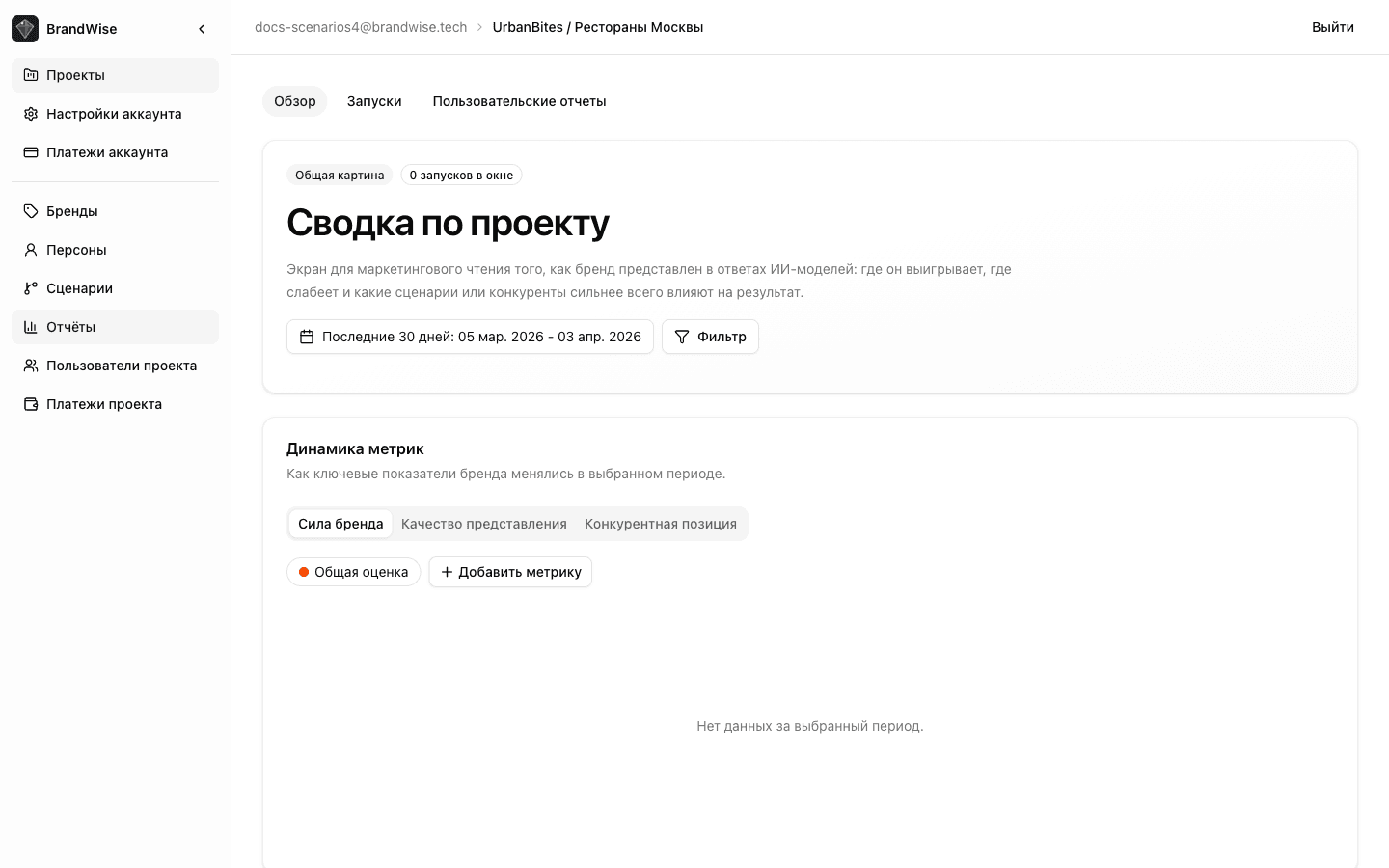
Each scenario run progresses through several statuses. The run lifecycle is displayed on the project reports page.
| Status | Description |
|---|---|
| Draft | Scenario created but never launched |
| Queued | Run is queued for execution |
| Collecting answers | Models are processing intents — BrandWise is receiving responses |
| Analyzing answers | Responses are being evaluated across 6 metrics by the judge model |
| Building report | The aggregated report is being generated |
| Done | Report is ready — you can view the results |
| Error | An error occurred during execution |
| Paused | Run is paused |
| Stopped by billing limit | Run was stopped because the per-run credit limit was exceeded |
Normal flow
A typical run follows this path:
Queued → Collecting answers → Analyzing answers → Building report → Done
The entire process takes anywhere from a few minutes to tens of minutes depending on the number of intents, models, and mode (Basic is faster; History takes longer due to multi-turn dialogs).
Stopped by credit limit
If the run's spending exceeds the per-run credit limit, BrandWise stops the run with a Stopped by billing limit status.
In this case:
- Some items were completed and evaluated — a partial report is generated
- Remaining items were not processed
- Credits are only charged for completed items
Resuming a stopped run
If a run was stopped due to a credit limit, any project member can resume it:
- Increase the per-run credit limit in the project billing settings or top up the balance
- Click the Resume button on the run page
- BrandWise will process the remaining items and update the report
Resuming does not cause double-charging — the system only processes unfinished items.
Email notifications
When a run completes, BrandWise sends an email notification to the user who initiated the run. The notification type depends on the outcome:
| Outcome | Description |
|---|---|
| Completed | All items processed, report is ready |
| Partial | Some items completed, partial report available |
| Failed | Run ended with an error, no credits charged |
| Stopped | Run stopped due to credit limit |
Notifications are sent to the email address linked to the user's account.
Execution matrix
Each run generates a set of items using this formula:
Items = intents × models × temperature variantsEach item is a separate AI model call with a specific intent. In History mode, each item includes a full dialog of 1 to 10 turns. After receiving a response, each item is evaluated across 6 metrics by the judge model.
The cost in AI credits is calculated from input and output tokens for each item. Learn more about pricing in the first project guide.
What's next
- Scenarios: creation and configuration — how to create and configure a scenario
- What is BrandWise — overview of metrics and how the platform works
- Brand profile — setting up a brand for accurate evaluation
- Create an account and get started
BrandWise Scenarios — Creation, Configuration, Basic & History Modes
How to create a brand evaluation scenario in BrandWise: choosing Basic or History mode, adding intents, selecting AI models, and configuring persona and dialog task.
BrandWise Metrics System — How Brand Performance in AI Is Measured
6 metrics for evaluating brand representation in ChatGPT, Claude, and Gemini: Visibility, Relevance, Positioning Match, Usefulness, Top of Mind, and Consideration. 0–100 scale with evidence quotes.