Project Team in BrandWise — Roles, Invitations, and Access Control
How to invite team members to a BrandWise project, assign Admin and Member roles, manage invitations, and control access to AI brand monitoring.
Project Roles in BrandWise
Every project member has one of two roles: Admin or Member. The role determines what actions are available within the project.
The same user can hold different roles in different projects. For example, you might be an admin in your company's project and a regular member in a client's project.
Role Permissions Table
| Capability | Admin | Member |
|---|---|---|
| Create and edit scenarios | Yes | Yes |
| Run brand evaluation scenarios | Yes | Yes |
| View reports with metrics and evidence quotes | Yes | Yes |
| Manage brands and personas | Yes | Yes |
| Continue a run after billing limit stop | Yes | Yes |
| Manage project members | Yes | No |
| Invite new members | Yes | No |
| Configure billing and spending limits | Yes | No |
Key difference: the Admin manages the team and billing, while the Member works with the core functionality — scenarios, brands, personas, and reports.
Who Gets the Admin Role
- The project creator automatically becomes an Admin.
- An Admin can assign the Admin role to other members during invitation or change a member's role later.
- A project can have multiple admins — this is the recommended practice to ensure continuous management.
How to Invite a Team Member
Only an Admin can invite new members.
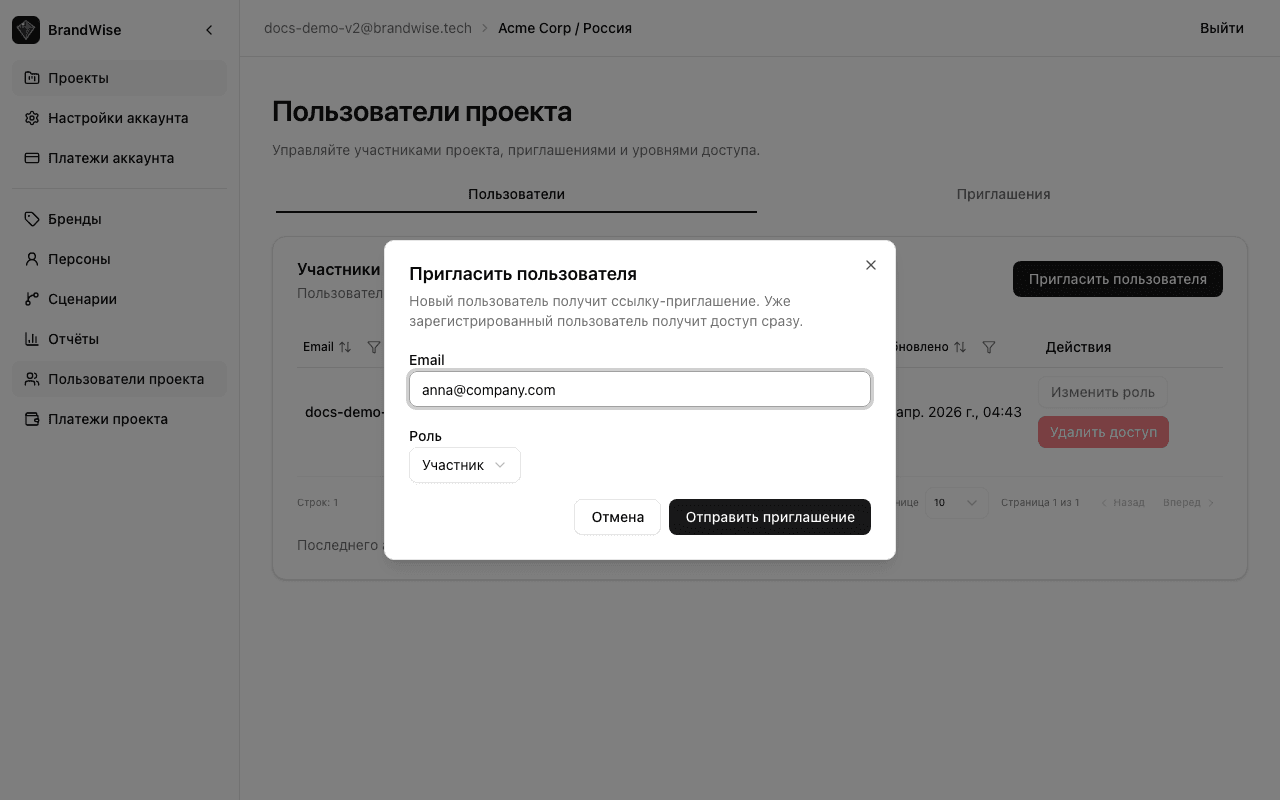
- Open the project and navigate to Project Users in the sidebar.
- Click Invite User.
- Enter the email of the person you're inviting.
- Choose a role —
AdminorMember. - Click Send Invitation.
The system sends an email invitation with a link to accept.
What Happens After Sending an Invitation
The flow depends on whether the user already has a BrandWise account:
| Situation | What Happens |
|---|---|
| User is already registered | Receives an email notification and instantly gains access to the project with the assigned role |
| User is not registered yet | Receives an email with an invitation link. Clicking the link verifies the email, prompts them to set a password, and the system automatically creates an account and assigns the role |
In both cases, the invited member immediately sees the project in their project list.
Invitation Lifecycle
Each invitation goes through specific statuses:
| Status | Description | Actions |
|---|---|---|
| Pending | Invitation sent, awaiting acceptance. Active until expiration | Admin can revoke |
| Accepted | User accepted the invitation, access granted | — |
| Expired | Invitation expired. The user didn't click the link in time | Admin can send a new one |
| Revoked | Admin revoked the invitation before it was accepted | Admin can send a new one |
Each invitation has a limited validity period. If the user doesn't accept in time, the admin can send a new invitation to the same email.
The "Project Users" Page
The team management page has two tabs:
Members Tab
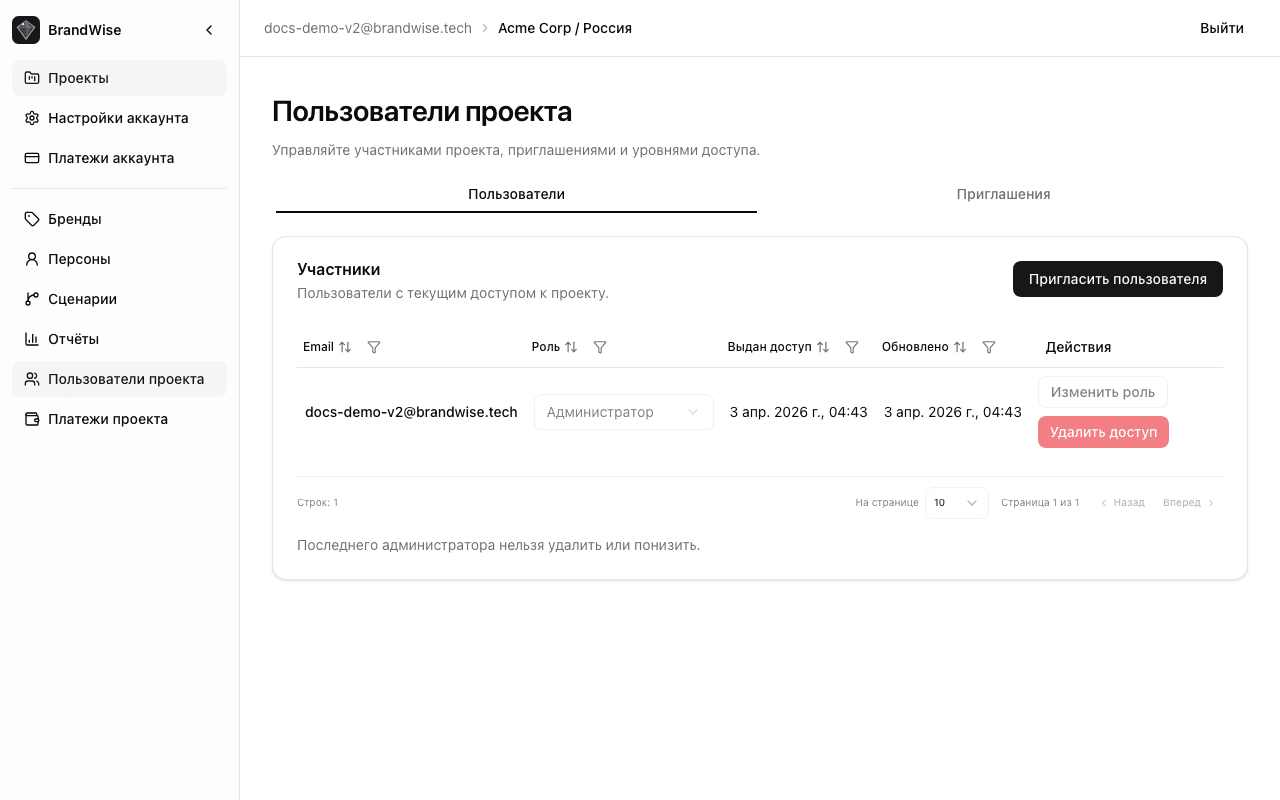
Shows all current project members:
- Email of the member
- Role —
AdminorMember - Access granted — when the user was added to the project
- Updated — when the role was last changed
- Actions — change role or revoke access (admin only)
Important: the last remaining admin cannot be removed or downgraded to a member — a project cannot be left without management.
Invitations Tab
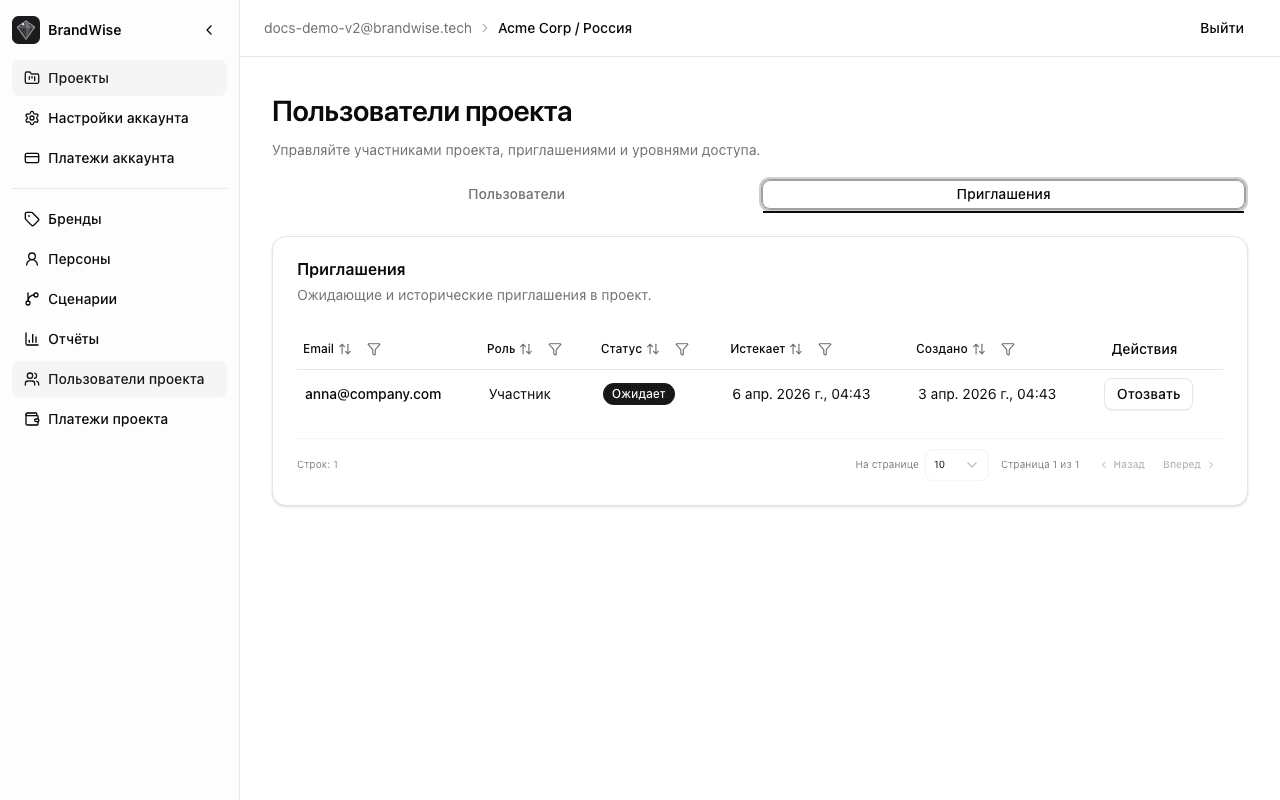
Shows all invitations with their current statuses:
- Email of the invitee
- Role — assigned project role
- Status — Pending, Accepted, Expired, or Revoked
- Created — date the invitation was sent
- Actions — cancel invitation (for pending items)
Admin Actions
A project admin can perform the following operations:
Changing a Member's Role
To promote a Member to Admin or vice versa, click the action menu next to the member and select the new role. The change takes effect immediately: the user instantly gains (or loses) access to the "Project Users" and "Project Billing" sections in the sidebar.
Revoking Access
To remove a member from the project, use the Revoke Access action in the menu next to their name. Once revoked, the user loses access to the project and all its data. The project disappears from their project list.
Cancelling an Invitation
If an invitation is still pending, it can be revoked. The invitation moves to the "Revoked" status and the email link becomes invalid. A new invitation can be sent if needed.
Authentication in BrandWise
BrandWise supports two sign-in methods:
| Method | How It Works |
|---|---|
| Email + access code | Enter your email, receive a 6-digit one-time code, and use it to sign in. New emails get an account created automatically |
| Email + password | Standard sign-in for users who set a password (e.g., when accepting an invitation) |
The access code method is the fastest way to get started. Registration and login are unified: just enter your email on the sign-in page and you'll receive a code. The code is one-time and has a limited validity period.
Team Organization Tips
- Assign at least two admins — this ensures the project stays manageable even if one admin is unavailable.
- Use the Member role for specialists who only work with scenarios and reports — analysts, marketers, SEO professionals.
- Use the Admin role for project leads who need control over billing, limits, and team composition.
- For agencies: create a separate project for each client and invite members only to the relevant projects — data between projects is fully isolated.
Related Sections
- Creating and configuring a project — how to set up a project and configure basic settings
- Your first project in 10 minutes — step-by-step guide from creation to your first report
- What is BrandWise — platform overview, metrics, and key concepts
BrandWise Projects — Creation, Settings, and Navigation
How to create and configure a project in BrandWise. A project brings together your team, brand profile, AI evaluation scenarios, reports, and billing.
Brand Profile in BrandWise — How to Configure for Accurate AI Evaluation
How to set up a brand profile in BrandWise: name, variations, positioning, tone of voice, attributes, and competitors. Complete guide with best practices.