BrandWise Projects — Creation, Settings, and Navigation
How to create and configure a project in BrandWise. A project brings together your team, brand profile, AI evaluation scenarios, reports, and billing.
What Is a Project in BrandWise
A project is a workspace that brings together everything you need to monitor your brand in AI responses:
- Team — members with roles and access permissions
- Brand — profile with positioning, attributes, and competitors
- Scenarios — sets of questions to test across ChatGPT, Claude, Gemini, and other models
- Reports — evaluation results with metrics and evidence quotes
- Billing — credit balance and spending limits
A single account can hold multiple projects. This is ideal for agencies managing different clients or companies with multiple brands. Each project is fully isolated: data, users, and billing never overlap between projects.
This architecture enables flexible access control: a marketer can be an admin in their company's project and a regular member in a client's project — with different permissions in each.
How to Create a Project
Any registered BrandWise user can create a new project.
- Go to the Projects page.
- Click Create Project.
- Enter a project name that makes sense for your team (e.g., "TravelBot / Tourism" or "Acme Corp / US").
- Click Create.
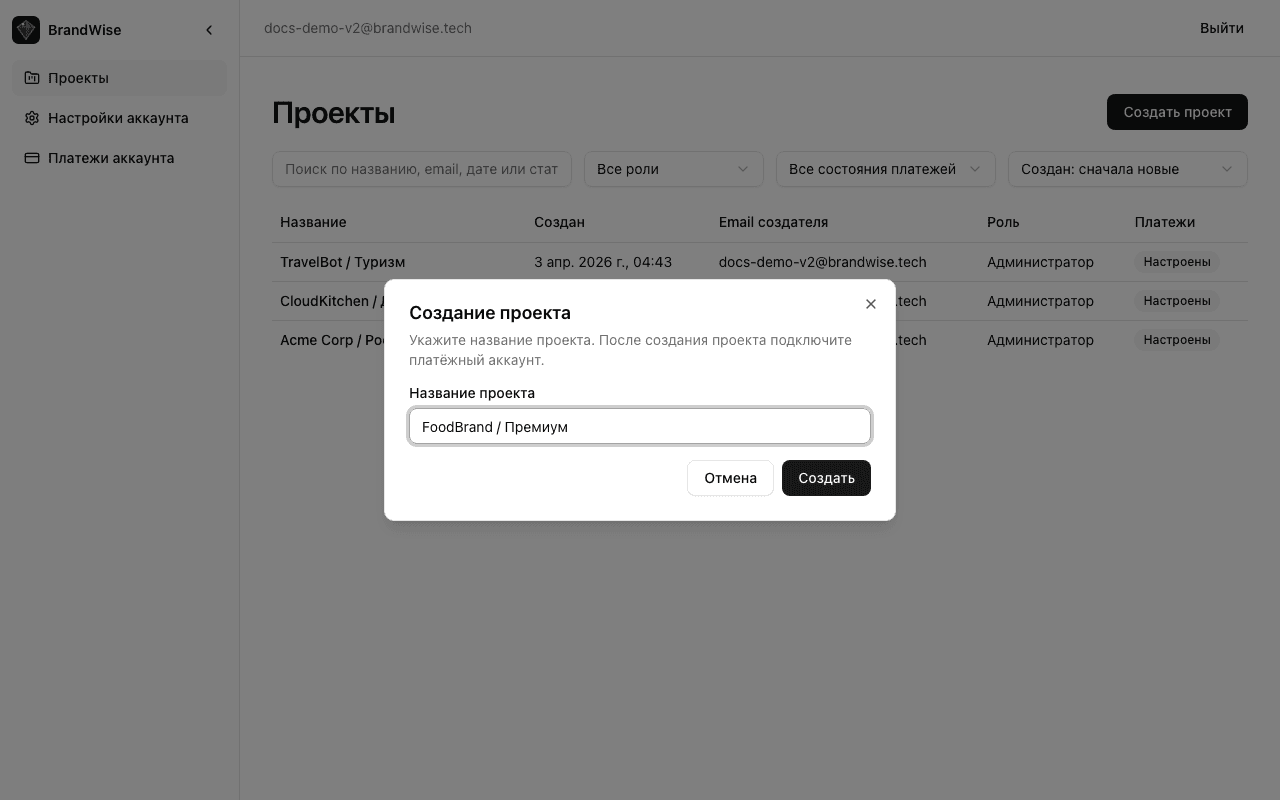
When a project is created, the following happens automatically:
| Action | Description |
|---|---|
| Role assignment | The creator gets the Admin role with full access |
| Billing setup | The system creates a billing profile and links it to the project |
| Payment method activation | If the account has no payment method yet, the "Invoice" method is activated |
After creation, you land inside the project and can immediately start setting up your brand profile, adding scenarios, and running your first evaluations.
Project Naming Best Practices
The project name is visible to all team members in the project list. Good practices include:
- For agencies: "Client Name / Region" — e.g., "Acme Corp / US" or "CloudKitchen / Delivery"
- For companies with multiple brands: "Brand / Direction" — e.g., "TravelBot / Tourism" or "FoodBrand / Premium"
- For standalone projects: the brand name alone is sufficient — "BrandWise" or "MyProduct"
Project List
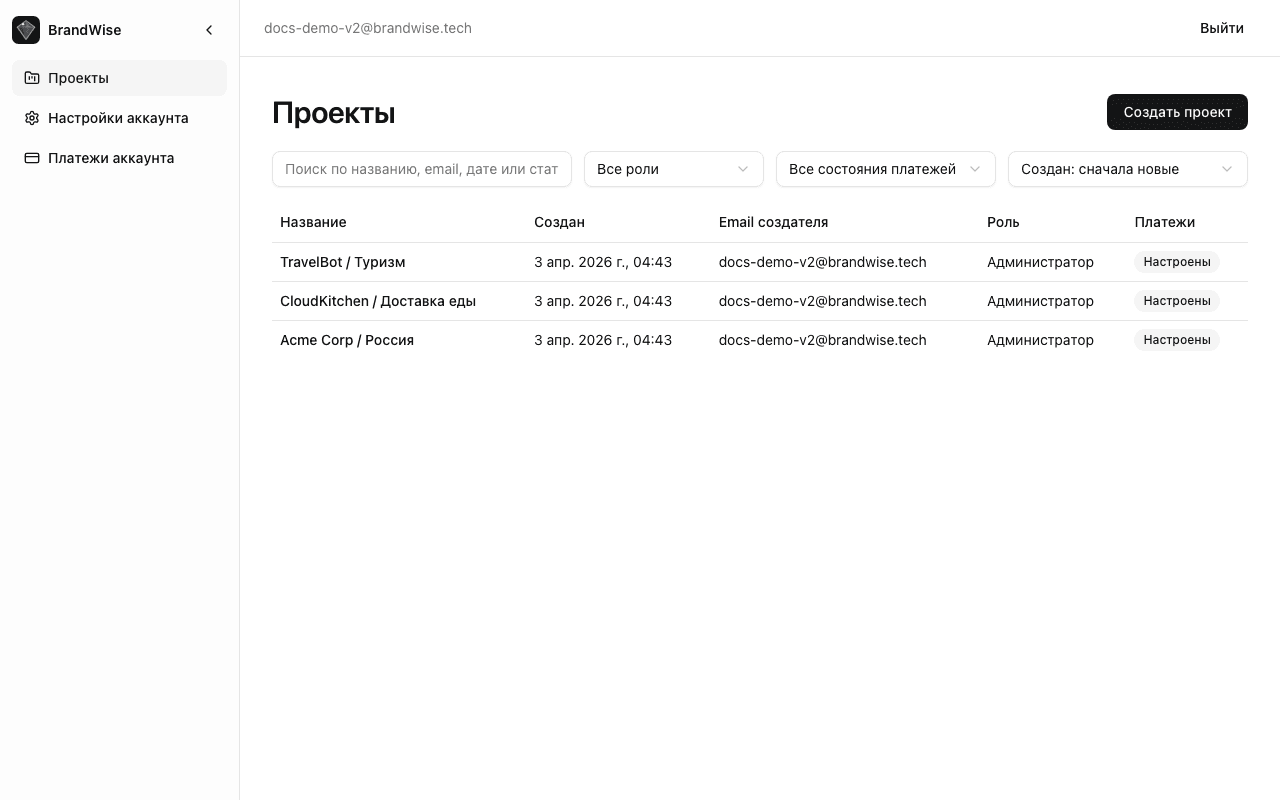
The Projects page shows all projects you have access to. Each project row displays key information:
| Column | What It Shows |
|---|---|
| Name | Project name, clickable link to enter |
| Created | When the project was created |
| Creator email | Email of the user who created the project |
| Role | Your role in the project — Admin or Member |
| Billing | "Configured" or "Setup required" |
Search and Filtering
When you have many projects, use the built-in tools for quick access:
- Search — filter projects by name, creator email, or date
- Role filter — show only projects where you are an admin or a member
- Billing status filter — find projects that need billing setup
- Sorting — by creation date (newest or oldest first)
Billing Status on Project Cards
The billing status badge helps you quickly see whether a project is ready to run scenarios:
- Configured — billing profile is linked, evaluations can be launched
- Setup required — you need to link a billing profile or top up the balance before running scenarios
Learn more about billing setup and credits in the billing and credits guide.
Navigating Inside a Project
Once inside a project, the left sidebar shows all available sections:
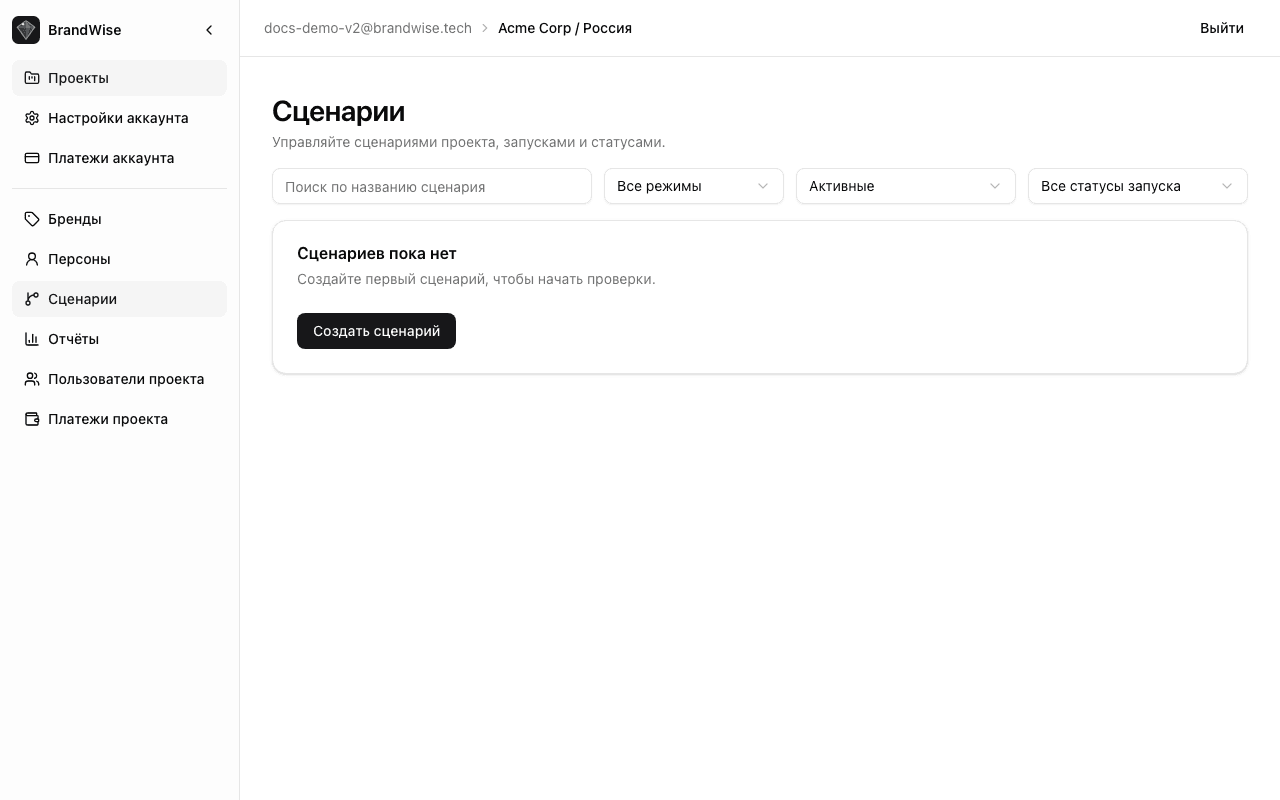
| Section | Purpose | Access |
|---|---|---|
| Brands | Brand profile: name, positioning, attributes, competitors | All members |
| Personas | Target user profiles for History mode dialogues | All members |
| Scenarios | Create and run brand evaluation scenarios across AI models | All members |
| Reports | Run results with metrics, heatmaps, and evidence quotes | All members |
| Project Users | Members, roles, and invitations | Admin only |
| Project Billing | Balance, limits, and spending details | Admin only |
The Project Users and Project Billing sections are visible only to users with the Admin role. Learn more about roles in the team management guide.
You can collapse the sidebar by clicking the arrow icon in the top-left corner. This is useful when working with reports, where you need more space for tables and charts.
What's Next
After creating a project, here's the recommended workflow:
-
Set up your brand profile — add the brand name, name variations, positioning, and competitors. This is the foundation for accurate Positioning Match and Visibility scoring.
-
Invite your team — add colleagues with the right roles. Details in the team management article.
-
Create your first scenario — write intents and choose AI models to test. Step-by-step instructions in the first project guide.
-
Run an evaluation — and get a report with scores across 6 metrics, a model heatmap, and evidence quotes.
The entire process from project creation to your first report takes about 10 minutes.
Your First Project in 10 Minutes — BrandWise Step-by-Step Guide
How to create a project, set up a brand, run an AI model evaluation, and get a brand visibility report with evidence-backed metrics. Step-by-step guide for new BrandWise users.
Project Team in BrandWise — Roles, Invitations, and Access Control
How to invite team members to a BrandWise project, assign Admin and Member roles, manage invitations, and control access to AI brand monitoring.